
Quick Answer: Is the Hansvision PX2261 Right for Your Language Goals?
To determine if the Hansvision PX2261 scanning dictionary fits your study routine, you must look beyond generic product descriptions. The actual value of any electronic dictionary lies in its licensed databases, offline capabilities, and language pairs. Because specifications can vary by production batch and region, you should verify the exact dictionary databases, language lists, and translation engines directly through the official user manual, retail packaging, or the device’s system settings. Key decision factors include whether the device operates entirely offline, how well it supports your specific target languages, and whether its built-in resources align with your current proficiency level. Checking the actual system menus on a physical demo unit is the most reliable way to confirm these features before making a purchase.
How to Verify Built-in Dictionaries and Language Packs
When evaluating the Hansvision PX2261, relying on broad marketing terms like “comprehensive vocabulary” can lead to disappointment. Instead, look for specific, licensed dictionary names on the physical packaging or the official specification sheet. Reputable electronic dictionaries typically list established academic, collegiate, or bilingual dictionaries from recognized publishers. Knowing the exact edition of the built-in dictionary helps you understand the depth of definitions, grammatical notes, and example sentences you will receive.

Once you have the device in hand, navigate to the system settings, library, or “About” menu. This section of the operating system usually displays the installed language packs, active dictionary versions, and any available software updates. Checking this menu ensures that the pre-installed databases match what was advertised and helps you identify if any critical language packs must be downloaded separately.
Products mentioned in this guide
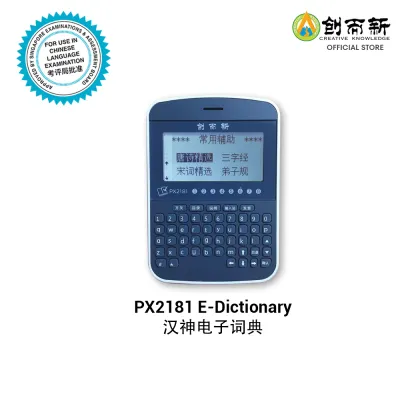
Prices are valid at publication and may change. Please refer to the product page for the latest price.
Additionally, you should confirm if there are any regional restrictions, firmware requirements, or network dependencies. In Singapore, some devices may require a local Wi-Fi connection to register, update firmware, or download supplementary language modules. Verifying these requirements beforehand prevents situations where certain dictionaries or translation features remain locked or unavailable due to regional licensing agreements.
Translating Technical Specs into Real Learning Value
Understanding how technical specifications impact your daily study sessions is crucial when choosing a scanning pen. By translating hardware and software specs into practical learning outcomes, you can make a much more informed decision.
Offline vs. Online Translation
A primary feature to test is how the device handles offline translation. In the system settings, check if specific language pairs, advanced dictionary lookups, or voice translation features require an active Wi-Fi connection. If you plan to use the device in classrooms or study areas without reliable internet access, a device that relies heavily on cloud-based translation engines may limit your productivity. Testing the translation speed and accuracy while completely disconnected from Wi-Fi will reveal the true strength of the built-in offline databases.
OCR (Optical Character Recognition) Limits
The scanning hardware relies on Optical Character Recognition (OCR) to read printed text. Before purchasing, consult the user manual or test a demo unit to check the supported font types, minimum and maximum font sizes, and handwriting recognition capabilities. Some scanners struggle with highly stylized fonts, italicized text, or very small print found in footnotes. If your primary goal is reading academic journals, classical literature, or handwritten worksheets, verifying these OCR boundaries ensures the scanner can read your study materials accurately.
Audio and Pronunciation
Hearing correct pronunciation is vital for language acquisition. You should verify whether the device utilizes high-quality native speaker recordings or synthetic text-to-speech (TTS) engines for your target languages. You can check this by exploring the audio settings or testing a demo unit in a quiet environment. Native speaker recordings are highly preferable for learning natural intonation, whereas basic TTS engines can sometimes sound robotic or mispronounce homographs.
Matching the Device to Your Specific Learning Context
The right electronic dictionary should seamlessly integrate into your specific learning environment, whether you are a student, a working professional, or a casual learner.
Beginners vs. Advanced Learners
Your current language level dictates the depth of information you need. Beginners often require straightforward, word-for-word translations and clear phonetic guides. Advanced learners, however, need comprehensive grammatical explanations, collocations, idioms, and contextual example sentences to master nuance. Review the dictionary definitions on the device to ensure they provide the depth of linguistic analysis required for your current and future learning stages.
Academic vs. Travel Use
Consider where and how you will use the device. If you are preparing for standardized language examinations or working in a specialized field, check if the device includes specialized vocabulary databases, such as medical, legal, business, or academic terms. For travel or general conversation, quick phrasebooks and rapid voice translation features are more valuable than deep academic etymologies.
Physical Ergonomics and Reading
Do not overlook the physical design of the scanning pen. The screen size, display brightness, and scanning speed directly affect your comfort during long study sessions. A screen that is too small or dim can cause eye strain when reading long definitions. Furthermore, the physical tip of the scanner must glide smoothly across various paper types, from glossy textbook pages to thin newsprint, without tearing the paper or skipping words.
Frequently Asked Questions (FAQ)
Can I add third-party dictionaries to the Hansvision PX2261?
To determine if you can expand the vocabulary of the Hansvision PX2261, you should consult the official user manual or manufacturer specifications. Look for mentions of expandable storage options, such as a microSD card slot, or dedicated PC-sync software designed for file transfers. You must also verify the supported file formats for custom dictionaries, as many proprietary electronic dictionaries do not support open-source dictionary formats or third-party database installations due to firmware restrictions.
Does the device support both traditional and simplified Chinese?
You can verify character set support by navigating to the language settings or display preferences menu on the device. Look for specific toggles that allow you to switch between simplified and traditional Chinese characters for both the user interface and the dictionary search results. To ensure reliable performance, test the scanner on printed samples of both character styles to confirm that the OCR engine accurately recognizes the strokes and cross-references them with the correct dictionary entries.

Community discussion
Share your experience or ask a question. Comments are reviewed before publication.