
An electronic dictionary is a powerful companion for language learners, offering instant access to definitions, pronunciation guides, and structured study tools without the distractions of a smartphone or tablet. Setting up the Creative PX2221 e-dictionary correctly from day one ensures that you can navigate its features seamlessly during intense study sessions, whether you are preparing for national examinations in Singapore or mastering a new language for professional growth. By understanding how to configure its interface, leverage its search engines, and build personalized vocabulary lists, you can transform this dedicated device into an indispensable academic asset.
To get the most out of your device, you must approach its setup systematically. A well-configured e-dictionary reduces eye strain, streamlines word lookups, and helps you maintain a consistent study rhythm. This guide walks you through the essential steps to initialize, customize, and maintain your device for long-term learning success.
Initial Setup and Power Configuration
Before you begin your first study session, take a moment to inspect the physical components of your device. Unbox the package carefully on a clean, flat surface and verify that all standard components are present. This typically includes the Creative PX2221 e-dictionary unit, a compatible charging cable or power adapter, and the official printed user manual. Having the manual on hand is crucial, as it contains specific button layouts and menu paths unique to this model’s firmware version.
Products mentioned in this guide
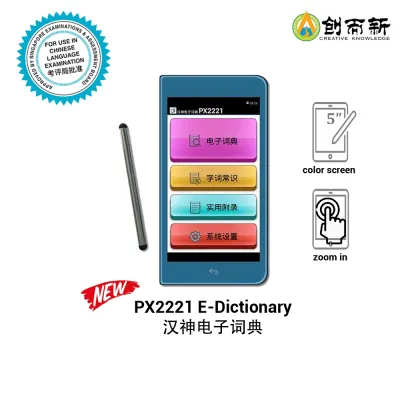
Prices are valid at publication and may change. Please refer to the product page for the latest price.
Power management is the next critical step to ensure uninterrupted study sessions. If your device uses a rechargeable internal battery, connect it to a power source using the manufacturer-approved cable. Check the user manual to identify the correct input voltage and recommended charging duration, as using incompatible chargers can degrade battery health over time. For models that rely on standard alkaline batteries, ensure you insert fresh, high-quality cells of the correct size, paying close attention to the polarity markings inside the battery compartment.
Once the device powers on, you will be prompted to complete the initial system initialization. Start by selecting your preferred system interface language, which will govern the menus and settings screens. Next, set the current date and time accurately. This step is essential for the device’s internal logging systems, allowing you to track your study history chronologically and receive accurate scheduled study reminders if your firmware supports them. Save these settings before proceeding to the main menu.
Customizing Display and Audio for Comfortable Reading
Long hours of language study can easily lead to eye strain if your screen settings are not optimized for your environment. The Creative PX2221 features a dedicated display that can be adjusted to suit various lighting conditions, whether you are studying in a brightly lit library or a dimly lit room at home. Access the system settings menu to adjust the screen brightness and contrast to a level that feels comfortable for your eyes. If you find yourself squinting at small text, look for the font size adjustment option to scale the definition text to a more readable size.

Auditory learning is just as important as visual reading when mastering a new language. To configure the audio settings, locate the sound menu in your device’s settings. If you plan to study in public spaces like school study halls or public libraries in Singapore, connect a pair of compatible headphones to the audio jack to avoid disturbing others. Adjust the volume limits to a safe level to protect your hearing during extended listening sessions.
Many modern e-dictionaries allow you to customize the playback speed of audio pronunciation tracks. If your specific firmware version supports this feature, consider slowing down the playback speed when listening to complex, multi-syllabic words, then gradually increasing it to standard speed as your comprehension improves. Because interface layouts and menu names can vary depending on the production batch of the device, always refer to the official user manual to locate these specific display and sound customization options quickly.
Mastering Core Lookup and Translation Functions
The primary value of the Creative PX2221 lies in its robust search capabilities, which allow you to find definitions quickly without breaking your study concentration. Familiarize yourself with the standard alphabetical search by typing a word directly into the main input field. As you type, the device will display a real-time list of matching terms, allowing you to select the correct word before you finish typing the entire spelling.
For more advanced queries, learn to use the jump-search and wildcard functions. A jump-search allows you to highlight an unfamiliar word within a definition and immediately look it up without returning to the main search screen. This is incredibly useful when reading complex explanations that contain secondary vocabulary you do not recognize. Wildcard searches, often utilizing symbols like asterisks or question marks, help you find words when you are unsure of the exact spelling or when you want to explore words with similar prefixes or suffixes.
To gain a comprehensive understanding of a word, you should navigate between the different dictionary databases installed on the device. The Creative PX2221 typically contains a mix of bilingual dictionaries, monolingual dictionaries, and specialized thesauruses. Use the dedicated toggle buttons or on-screen menus to switch between these databases. Comparing a bilingual translation with a monolingual definition helps clarify subtle nuances in meaning, while a thesaurus provides synonyms that expand your writing vocabulary.
Finally, make active use of the device’s search history and jump-back features. When you are deep into a reading passage, you may need to look up several words in quick succession. The history function keeps a running log of your recent queries, allowing you to review them at the end of your session. The jump-back feature ensures that you can return to your original search screen instantly, preserving your reading context and saving valuable study time.
Organizing Personal Word Banks and Study Lists
Passive lookup is only the first step in language acquisition; active memorization is required to truly integrate new words into your vocabulary. The Creative PX2221 provides built-in tools to help you transition from searching to learning. When you find a word that you want to memorize, look for the save or bookmark option on the definition screen. This action allows you to add the word directly to a custom folder or a digital flashcard deck.
To make your study sessions more efficient, organize your saved vocabulary lists systematically rather than keeping one massive, unorganized list. You can categorize your words by theme, such as academic vocabulary, business terms, or colloquial expressions. Alternatively, group them by difficulty level or by the date you encountered them. This structured approach allows you to target your weak areas during daily review sessions and prevents you from feeling overwhelmed by a disorganized database.
Once your word lists are organized, utilize the device’s built-in review or quiz modes to test your retention. These modes often present you with flashcards, multiple-choice questions, or spelling challenges based on your saved lists. Regular self-testing reinforces memory pathways and helps you track your learning progress over time. Set aside ten to fifteen minutes at the start or end of each study session to review your custom word banks, ensuring that older vocabulary remains fresh in your mind.
Device Care, Maintenance, and Basic Troubleshooting
To ensure your Creative PX2221 remains a reliable study tool for years to come, proper physical care and maintenance are essential. The screen is the most sensitive component of the device and is susceptible to scratches and smudges. Clean the display and outer casing regularly using a dry, soft microfiber cloth. Avoid using harsh chemical cleaners, alcohol-based wipes, or abrasive materials, as these can strip away protective anti-glare coatings and damage the plastic casing.
When you are not using the e-dictionary, store it in a dedicated protective sleeve or hard-shell case. This shields the device from accidental drops, pressure damage inside a heavy school bag, and environmental hazards. Keep the device away from extreme temperatures, high humidity, and direct sunlight, which can damage the internal circuitry and degrade the battery.
Even with careful use, you may occasionally encounter minor software freezes or unresponsive screens. If the device stops responding, perform a soft reset by following the instructions in the user manual, which usually involves pressing a recessed reset button with a small paperclip or holding down the power button for several seconds. If the issue persists, check the battery connections or ensure the device is fully charged. For persistent hardware malfunctions or physical damage, avoid attempting self-repairs; instead, consult the manufacturer’s official service center for professional assistance.
Frequently Asked Questions (FAQ)
Can I add third-party dictionaries to the Creative PX2221?
Whether you can add external dictionary files depends on the specific firmware and hardware capabilities of your device. To verify this, consult the official user manual or the manufacturer’s specifications sheet to see if the device supports external memory cards or specific file formats. Avoid downloading unverified dictionary files or attempting to install unauthorized third-party software, as this can corrupt the operating system, void your warranty, or violate intellectual property rights.
How do I back up my personal vocabulary lists?
Protecting your study progress from accidental data loss is highly recommended. Check your user manual to see if the Creative PX2221 supports data synchronization or file transfers via a USB connection to a computer. If supported, connect your device to your PC using the official cable and follow the specified protocol to export your custom word lists as backup files. Performing this manual export regularly ensures that your hard-earned vocabulary banks are safely stored on an external drive.

Community discussion
Share your experience or ask a question. Comments are reviewed before publication.